Table/Maker    The Only Spreadsheet Using Only Arithmetic

References:  https://en.wikipedia.org/wiki/T/Maker   https://en.wikipedia.org/wiki/Peter Roizen   Email: roizen@ix.netcom.com

 Links:   The Download Page      Tutorial Videos       My other outside-the-box idea:   WildWords Crossword Game      

America, we have a problem. The math skills of our people are going to hell in a hand basket. Graduating high school seniors are setting new records for low achievement. The powers that be continue to recommend more teachers and better approaches explaining algebra to all students. This affects a very limited portion of the total population. It has not reversed or slowed the nationwide decline from year to year. Another collection of experts feels we should forget algebra in favor of practical math for students not interested in careers requiring more. I have not seen any of these experts suggest a coresponding tool to do this job. "Use it or lose it" applies to math as much as many endeavors. You will find here a tool of my own making. With help from a Microsoft or Google it could be an aid to tens of millions who have nothing whatsoever to use now. So, why me?

prIHA BoxMy Relevant Personal History: Six unlikely circumstances over a dozen years led me to create a means for in-document calculations specified in arithmetic. I published T/Maker which included that in 1979 and a Windows math-only part in 1991. In 2020 a system update killed both. Jumping ship to an algebra spreadsheet would have been a betrayal of decades of ideas, fond memories, and surprising success. I decided to resurrect and expand the still unique syntax and emphasize it for an ignored group -- people with no knowledge of algebra. If I sometimes sound like a madman on a mission, I will admit I am on a mission and might actually be the one person in the world who seems predestined to create this page, at this time, with this approach. The history is there even though this does sound somewhat like madness. Sketch from Programmers At Work, Microsoft Press, (c) 1983

 This page is under construction. The program is in good shape and can be installed with a few conditions.

Calculating In Arithmetic:                                                         Note: You are free to go after completing this one box.
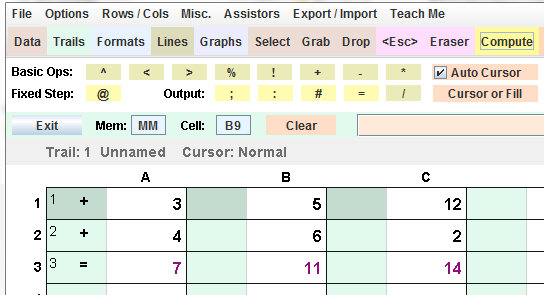
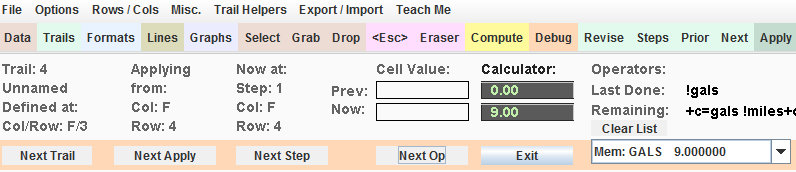
Imagine a big fat calculator with tons of crazy buttons sitting on top of green and white boxes in two dimensions. Suppose you could type whatever text and numbers you want in the white cells and things called Calculation Trails in the green cells. A trail would have a series of steps done in number order. Each step would be a sequence of buttons touched on the calculator (or typed in). So what have we got on this screen?

In the first step we have a Basic Operator which is an exclamation point. This operator enters a value into our calculator which is 1 in this case. Unsurprisingly step number 2 adds 1 to the calculator and step number 3 (an Output Operator) puts the calculator's value into column C then zeros the calculator. If step 3 had been the # Output Operator instead, it would have just left the current value, 2, in the calculator.

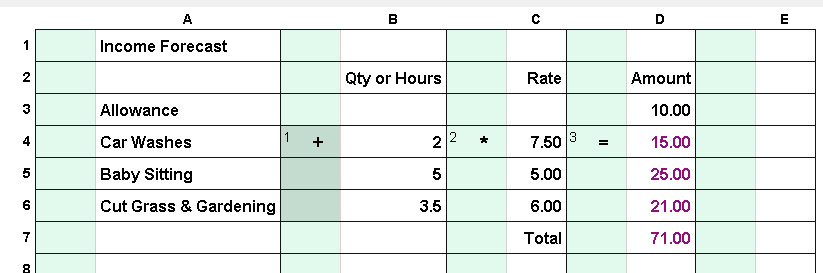
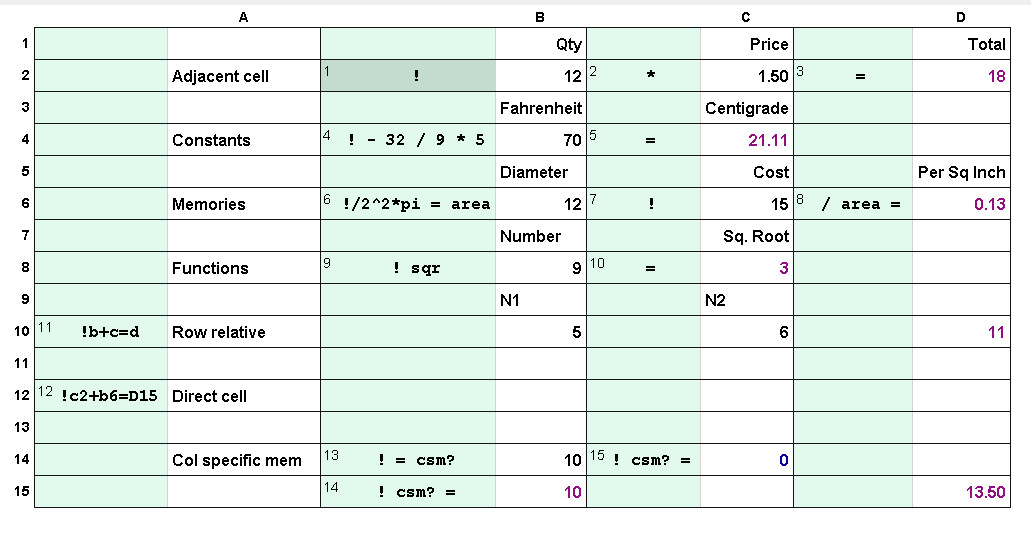
Image MissingOperators don't always have to refer to the number in the white adjacent column. In step 4 the two numbers used in this calculation are written as constants just after the operator itself. In step 5, the numbers for the operators and the output location are designated by their column names -- single letters in upper or lower case. Note that this step could have been put in any column because no operators reference an adjacent white column. It is also possible to use cell names like A11 or e6 but it's discouraged and usually avoidable.

Extremely valuable, an operator can also refer to a value in a named memory. You can make up your own memory names on the fly. They must start with two letters followed by optional numbers or letters. Upper and lower case letters are not distinguished from each other. I recommend some upper case to highlight memory names in steps. Memory names are perfect for storing intermediate values for later use and much less mistake prone than cell names. Step 6 stores the total in a memory named "Two." Step 7 enters the value in that memory into the calculator and outputs it to the white adjacent column. Honestly, have you ever seen a presentation of some calculations in such a visually intuitive and easy to read format? Don't skip the video for even more surprises. And look at the next example for a full problem solved needing geometry.

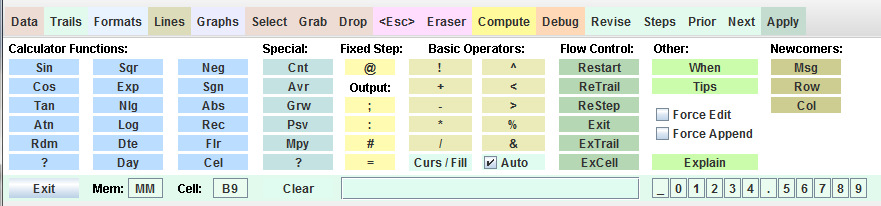
As for the other elements in this giant toolbar: "Functions" replace the value in the calculator with a function of it (sqr is the square root). "Special:" are just that. I should actually drop Cnt and Avr (Count and Average) as there is a better way to do a variety of statistics with one trail. The other special functions need a few input parameters. By convention the parameters are placed in fixed name memories. "Flow Control" allows impromptu exits from or restarts of various calculations. A "When" clause describes a conditional test so different situations can be handled differently. This calculator is completely programmable and can be used to create simulations, perform binary searches, etc., etc. Even so, the target audience consists of mathematically uninclined students and average people wanting to do daily life bookkeeping and calculations to support informed decision-making. Feedback welcomed. I get almost none which makes me wonder if I am lost in space with this.

Time for a "some more cool stuff" video!
Size the new browser window as necessary. Thank you for your time. I hope you saw something new and worthwhile here and might pass it on.

Geometry: This subject is often taught with a requirement of algebra first. Frankly, I think geometry is the easier of the two with more immediately apparent applications. DIY projects are particulary needy of perimeters, areas, and volumes.  Even familiarizing everyone with the variety of measures used in different circumstanes is useful: miles, meters, cubic inches, acres, etcetera.. The table below figures out the number of bags of QuikCrete needed to fill the holes made for 30 fence posts.  The video explains the thinking and the use of memories. This can be done with less typing, but I like doing stuff in the clearest way. Also, all the relevant constants can be changed for other other holes and posts. You can imagine knocking out some complicated word problems exercising critical thinking. What pieces do I need along the way? How do I put them together? Important life decisions, however, are almost never about a single number solution. So there will also be time spent figuring collections of numbers to be better informed,


Optional Video (a bit repetitive for now but better explained)

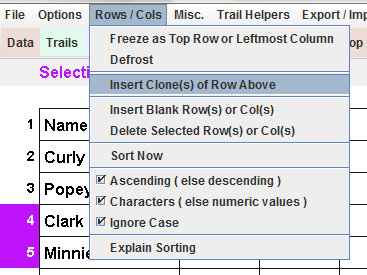
Home Budgeting and Bill Paying: Sometimes a well-made list with a minimum of calculations is valuable on its own. You don't always have to be predicting the future of hedge funds! To the right is one that's a favorite of mine. It lists all bills that need to be paid. The list includes the number per year, how it arrives, where to find details about it, what day it closes, how it is paid, an approximate average amount, the total per year (calculated), and a number to sort on for my prefered order. The other number calculated is the column total of "Total" The table can also be sorted on any other column. I print one now and then to mark an amount paid if any for potentially adjusting the average. With the number of bills one has these days, I am happy to have this page in a permanent location on my phyiscal desktop. My actual list has a lot more lines. Take a quick look at some easy and useful manipulations of this list including the insertion of a new cloned row.
Optional Video


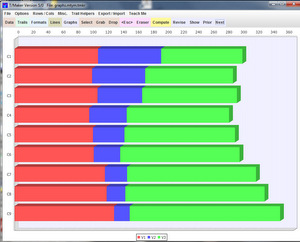
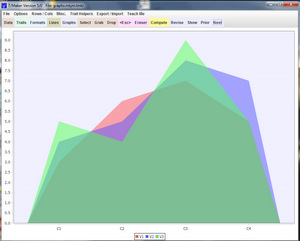
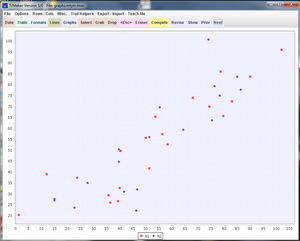
Graphics: While the charts and graphs are not on a par with well-established spreadsheets, you can use them to get insights into your data and a student can learn what type of chart best illustrates a certain point. This is one of a number of areas where T/Maker could be improved by teaming up with a company that already has a professional collection of charts and graphs. The current graph interface could be kept pretty much as is in terms of simplicity. Better to forgo a few capabilities than start to make things complicated.


Statistics: An understanding of some basic statisics is certainly useful. Many can be obtianed with one trail using the & (Combo cursor). It uses memories to keep track of a number of key indices. These can be fetched from the memories and displayed as in the table below. With a few other trails you can put the values in normalized form and calculate correlation coefficients. I am not suggesting the average student calculates their own correlations but they should understand what a lot of every day terms mean like the mean versus the median. I would also teach scepticism for the statements made in typical advertisements or new articles. The ten best places to live, etcetera. A lot of nonsense is passed off as science.


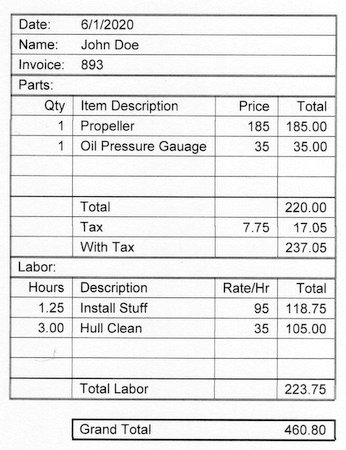
Forms: With four different line styles plus the possibility of no line, you can design some nice forms. Allow text to span multiple columns when setting formats (Alignment "+" Spans). Text can be specified in an invisible ink format effectively blanking it out. This is useful when elements in a table are needed for calculations but not desired in a final print-out. A respectably looking estimate or invoice could cetainly be made for the self-employed.

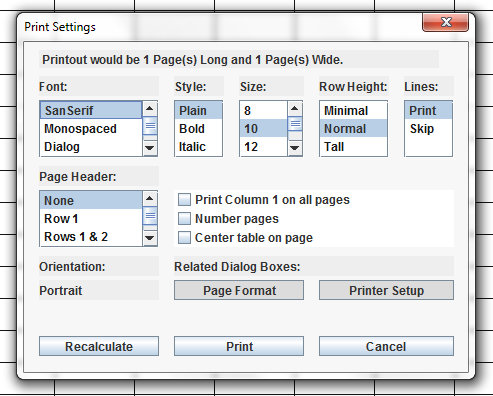
Printing:  Print the table in one of four fonts. Choose font style and size. Set a row height to tighten or spread out the vertical dimension. Decide whether or not to print lines. Options are available for row names and column names. Switch between landscape and portrait as well as set margins with two system dialog boxes called up with a button.

The top of the page shows the length and width of your table in pages. In addition to marign adjustments, changing the size of the font and other items may affect these numbers. Use the Recalculate button to refigure the size when you have altered any items. I generally try for a minimum number of pages with the width of only a single page.


Starting From (Almost) Scratch :  I do keep the template below handy without any data. It gives me a head start on adding up lump sums or quantities with unit prices. My once a year hand-prepared maintenance bill for a runabout gets checked for labor and parts. The template includes a single pie chart for all the items most of which are zero. I just push the Show button for that.


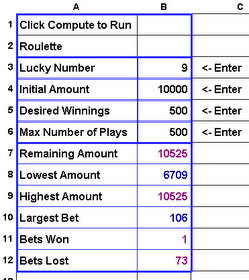
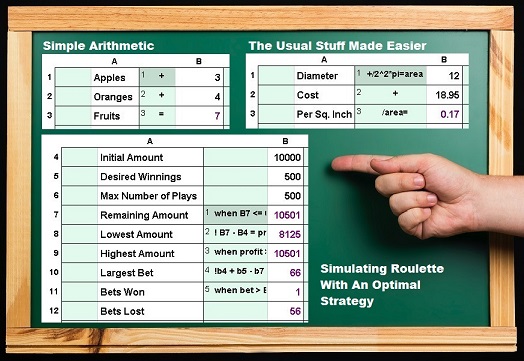
Video: Gambling on Roulette
What you saw: You saw a table that plays the optimal strategy for roulette within constraints defined by the you. In addition to demonstrating a functional use of memories, it calls on a number of elements available in the large toolbar above. These include conditional logic and branching which makes this not just a table but a program. So why is it here in a page hoping to entice persons with very modest math skills? As they say, "that's a good question."
T/Maker does provide room for any user to grow with more and more difficult problems. But probably more important in a classroom setting, T/Maker can open up a world with a variety of topics. With some reasonable amount of time, I believe the workings behind this roulette exercise could be explained to pretty much everyone. The same can be said for T/Maker tables calculating basic statistics, performing simulations or binary searches, contrasting investment strategies, weighing present versus future values, or factoring in appreciation and depreciation, etc.  Plus, these important values can be calculated with T/Maker and explained intuitively without complicated algebraic formulas.
Dumb me! I should not have used the metaphore of "rolls the dice" i
n the video for "spins the ball."


Above is sort of OK. Better than it was. Below here is to completely rethink and revise.

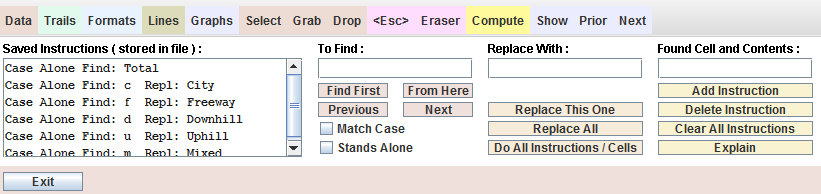
Find / Replace Helper in Misc. Menu:
If you are in a position where you regularly enter data of purchases or whatever that need to be listed, the Find / Replace helper can be handy.
Use it to create abbreviations to minimize typing and store them with the file.
Then the Do All Instructions / Cells button is used to replace all abbreviations with the fully spelled out text.
For a needed monthly list of purchases, start with the previous month's file, rename it, and blank out the data to take advantage of the abbreviations stored in it. Quick look. Video: Find Replace Helper


It's There Somewhere:  While not always the case, if you find something you and others probably want to do, there is a chance it's there. It may be a faster way to edit, move the screen, duplicate some data, or in this case, insert, delete, or reorder trails and givem the names and descriptions. This starts with the Revise button on the Trails screen. Select the Trail Slot and move it or whatever. If you change the text (Name or Comments), remember to push the Set / Reset button. Names and comments will be helpful reminders. Also, someone else may have put in meaningful text in a file you got from elesewhere, like here! Some other screens have their own purposes for the Revise button.


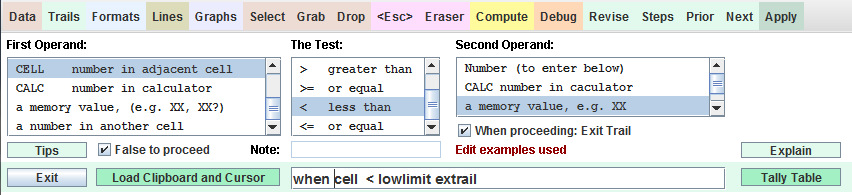
The When Clause:  Different rows or columns in a table may require very different calculations. With the Apply button you do have the possibility to have a number of different trails and choose to apply them across different rows or columns as needed. This introduces an overhead of keeping track of what is used where and making choices when a new row or column is added.  Another approach is to put something in the trail or a step that lets the trail determine if it should do a calculation or not. This is achieved through what is called a "When Clause."  This clause is a true or false test which can be put in a step. If the clause is true, the operators after it are executed normally. If the clause is false execution moves on to the next step.

The clause itself consists of the word "when," a first operand, a test to be performed, and the second operand for the test. One chooses the elements proceeding from left to right on the help screen. This completes the edit area to the right of the light green "Load Clipboard and Cursor" button below. You may also edit what is in that area to provide specifics of what happens when the test is true. Then you can push the just mentioned button to get a cursor representing the text and click it where needed. It is often the case that some form of almost the same clause is needed more than once. You can change the text in the edit area and use the aforementioned button to get a new cursor. Note below that the calculation given is only executed for rows designated with the code "A".


Watch the construction of a When Clause demonstrating another use of it with the Tally Table button.


Importing Data: To try T/Maker, you don't have to start with typing data. You can probably import data from a program you have that exports files in the popular CSV (Comma Seperated Values) format. T/Maker can also import data using white space as a delimiter, parsing mostly vertical columns, or using a first line that is a template for where columns of data are located.


Open a table file or create a new blank one for the data to be imported.
Click Export / Import menu, then Clipboard / File Controls
If the data is in a file, use the Load Clipboard button.
Otherwise make sure the data is in the clipboard.
Push the Show Clipboard button to display the data.
You may edit lines shown for whatever purpose.
If you do, push Set Clipboard To: button to load your edited version.


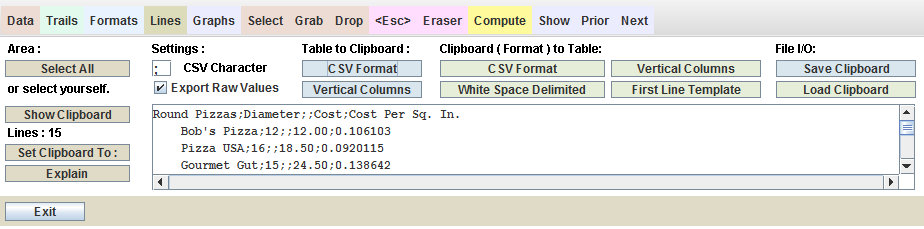
For this example, I made a selection from a web page and used the copy keystroke. I was unable to select the titles. Perhaps they are represented by a graphic and not text. Pushing the Show Clipboard button, the data appeared as in the listbox. I used the Select cursor on Row 1 Column A as the strarting position to load the table. Then I chose the White Space Delimited option to transfer the data to the table. You can see the first two rows below.


Picking data out of a web page works or does not work depending on how the HTML in the web page is written.
As you can see, there are a number of Clipboard to Table options. You can try one after the other. 
Push the Explain button for more details.

If you can get a CSV file, use it. If not, you can inspect the clipboard to see what might work.  The Export / Import menu also has some cursors to fix problems that might occur on individual rows.


Exporting Data:
Load the table from which data is to be exported.
Click Export / Import menu, then Clipboard / File Controls
Use the Select Cursor to select an area (click first and last cell)
Hint for above: use Page Up, Page Down, etc. to move screen
Or, push Select All button.
Enter CSV Character for separating values in CSV Format.
(Above does not have to be a comma)

Check Export Raw Values or leave blank for formatted values.
Choose a Table to Clipboard option.
Clipboard will then show in area below.
You may edit lines shown for whatever purpose.
If so, push Set Clipboard To: afterwards to load your changes.
To save clipboard as a file, push Save Clipboard option.
A dialog box will allow you to set a folder and file name.
   Moving Data:
   Save the file as it is first. 
Duplicate or move data in a table by exporting it. Then import it to the new location.
   Erase the old data when that operation is completed. Don't save anything until you are sure.
   BTW, one backup file is kept with zzz prepended to the file name if you set that option in the Options Menu.


Column Relative Memory Names: Here is a feature that got created because it's useful. Let's say you are doing the same calculations on a range of columns. Suppose Trail 3 creates a value that would be useful in Trail 7. You might put in Trail 3 a notation like step 4 to save the value in a memory for use by Trail 7. Problem: All applications of Trail 3 are done before T/Maker even gets to Trail 4. Therefore the value in memory Myval will be overwritten each time the trail is applied on a subsequent column.
Realizing that you will need a different trail using a different memory name for each column, you have to wonder if there is a better way to attack this prorblem. There is.

If a memory name ends with a question mark, the question mark is replaced by the column letter in which the name is used, case insensitive. That means when MYval? occurs in column A, it is as though you wrote MyvalA.
Thus a use in one column of Myval? will not refer to the same memory when it is used in another column. This technique is used with the "Combo cursor" to calculate a number of statistics across multiple columns without having one application step step on the toes of another. It can also be used, for example, to store values from say row 11 so they can be easily called back in row 61 as memory names.


Mortgage Payment The Hard Way:  This is the formula for a monthly mortgage payment (M) from the amount borrowed (Principle) over (n) periods at an interest rate (i) per period:
M = P [ i(1 + i)^n ] / [ (1 + i)^n – 1 ].  It is more easily forgotten than remembered. This example is for readers who wonder about unexpected tasks that T/Maker might handle. Most will not be attempting to construct a table at this level of complexity. But hopefully they can get the idea of how it works. Skip it if you like.


I  do know the payment accounting that is done each month. Interest is added. The payment is subtracted. That yields the remaining balance for the next month. And so it goes for every period. T/Maker is programmable. With the terms of a mortgage and a given monthly payment, it could do the math. If the final balance ended up negative by more than a trivial amount, it would mean the payment was too large. If it ended up too positive, it would mean the payment was too small. Something called a binary search is a smart way to deal with this type of situation.

First we need to find a low and a high estimate for the correct payment (discussed later), then we take the average of the two, and do the math. If the remaining balance is too negative the payment was too much. We change the high estimate to the average we just used and start over with a new average. If the balance is too positive, the payment was too little. We change the low estimate to the average instead and try again. If the balance was a trivial amount from zero, the payment is right and we stop repeating loops. The term "Binary" is used because the range of possibilities is cut in half with each iteration.

We will have three sorts of stages in this process: 1) Start Up: calculate the correct value as in the previous example to compare with this approach and set some nicely named memories with initial values. 2) Prep Next Guess: Prepare memories with values to run through all payments and establish our next payment guess. 3) Run and Evaluate: Do all payments, evaluate the remaining balance, and take the appropriate action. We will do one trail for each stage which makes it easier to see what is going on. A trail is a very flexible item.


Trail 1:


Startup: When T/Maker begins calculating all memories are effectively zero. In the first step, Pass is a memory which will be zero at the first execution of the trail. A When Clause is used with the "not equal" comparison to see what the story is. This test will fail since Pass is zero, so the rest of step 1 will not be done. T/Maker will jump to step 2. Later when Pass is not zero, the rest of the step will be done and T/Maker would EXit this TRAIL (EXTRAIL) and jump to step 1 of next trail, namely, 2.

This trail is meant to be executed only once. Steps 2 through 5 calculate the correct mortgage payment in the way of the previous example. Step 6 puts the borrowed amount in the memory Amount. Step 7 divides the interest per period by 100 so it is a rate as opposed to a percentage. Step 8 puts the number of periods in the memory Months. In truth, it could be quarters or years or whatever. Perhaps a memory named Periods would have been more to the point.


Trail 2:


Prep Next Guess: The first two steps of trail 2 are only done the first time trail 2 is executed. Otherwise, the Low and High estimates for the Payment are controlled in the third stage. The Low payment is calculated to only pay back something less than the full amount of the loan. Banks don't generally offer that. The High payment would pay back the interest on the full amount every month plus the Low payment. This would probably be called "sharking."

Step 3 displays the Low payment. Step 4 calculates and displays the Payment based on the average of Low and High. Step 5 displays the High payment.

Step 6 sets the memory Remains to full Amount (this is before the first payment is made).
It also sets the Time to 1 (think of this as the current month/period).
And it adds 1 to the memory Pass. This makes sure we won't do the one-time steps again and serves to count the total number of different payment amounts that were tried before the correct payment was found.


Trail 3:


Step 1 calculates the remaining amount including new interest.
Step 2 subtracts the next payment from the remaining amount.
Steps 3 and 4 simply display memory values of interest,
Step 5 Regardless of the Time, If what remains is already less than minus 5 the payment is too high. So the High value is reset to the current Payment and the table is RESTART(ed) from the beginning. However, this time Pass is not equal to zero so various steps will be skipped.
Step 6 tests if the final payment was just made. If not, this trail is RETRAIL(ed) which means T/Maker will jump back to the first step for this trail and advance another time period.
Step 7 is only tested after all payments are made. It checks if the remaining amount is greater than 5. If so the Payment was too low, so the Low value is reset to the current Payment and the table RESTART(ed).
Otherwise it is mission accomplished! The amount remaining is between minus and plus $5.
If there were a trail 4, T/Maker would have started on it.

Don't lose sight of the benefit that this example offers an oppotunity for students to learn something interesting independent of this problem solved. This can be done with many other subjects: statistics, probabilities, etc.
For the record, no trail yet has used a cell name except the example of how to use a cell name!

The Quadratic:  Real life math is generally about applying known formulas to known values to get an estimate or understanding. Finding solutions to equations or points where lines intersect is more about scientific pursuit than managing your home or even small business.  Part of algebra includes this famous formula which can be a nightmare for some students. I thought I would put in a table that solves it for the coefficients a, b, and c.  Pushing the Compute button displays the solution if there is one in real numbers and prepares a list of numbers for the chart to the right. The Show button would show the chart.


The necessary designations for the graph values were put in the table manually on the Graphs input page.  I first did the graph as a single line showing the parabola f(x) versus x. That was rather boring and quite low on information value. I then tried the presentation above. The value of x is shown as a red bar which starts off negative and climbs. The blue bar shows the value of the function. You can see the two solutions where the height of the blue bar is zero. When things are easy, a spirit of trial and error discovery is encouraged. That often leads to something unexpected and better.


Keyywords : Spreadsheet, tables, t/maker, tmaker, arithmetic, remedial math, algebra, quadratic equations, silmultaneous linear equations, word problems, computational skills, math for everyone, spreadsheet for everyone, elementary school spreadsheet, problem solving, problem solving before algebra, spreadsheet for 10 year olds, two dimensional hand calculator, arithmetic syntax for spreadsheets, practical math, math for the real word, usable math, few mistakes, fewer mistakes, easy to understand, intuitve, visual syntax, like writing on a blackboard,sensible, practical, useful, straightforward, user friendly,
fun, enjoyable, low stress, easy to use, math for dummies, spreadsheets for dummies, do not need algebra, algebra not required, only arithmetic needed, no algebraic formulas, no cell names,
memories, make your own names for memories, left to right order, no precedence, no parentheses, mortgage function, net present value, discounted value, growth rate, trigonometry, sine, cosine, tangent,
logs, exponents, Peter Roizen, Cubberley, University of California at Berkeley, Cal, Palo Alto, I Hate Algebra, non-algebraic solutions and notations, programmable calculator, iterations, convergent solutions, probablities, optimal strategies, linear programming, statistics, correlation coefficients, standard deviations, MAGA Principle 1:  Make Arithmetic Great Again.  MAGA Principle 2: Make Alegbra Go Awayy.  MAGA based. MAGA MATH. MAGA SPREADSHEET, MAGA Tables. conditional logic
 
bridge of arithmetic     arithmetic bridge   island of algebra   island of alcatraz island of algebraz      alcatraz island     algebra island    algebraz island